| .github/workflows | ||
| assets/image | ||
| cmd | ||
| examples | ||
| internal | ||
| tests | ||
| .gitignore | ||
| .goreleaser.yaml | ||
| CODE_OF_CONDUCT.md | ||
| codecov.yml | ||
| CONTRIBUTING.md | ||
| go.mod | ||
| go.sum | ||
| LICENSE.md | ||
| Makefile | ||
| README.md | ||

Dagu




A No-code workflow executor
Dagu executes DAGs (Directed acyclic graph) from declarative YAML definitions. Dagu also comes with a web UI for visualizing workflows.
Contents
- Dagu
Motivation
There were many problems in our ETL pipelines. Hundreds of cron jobs are on the server's crontab, and it is impossible to keep track of those dependencies between them. If one job failed, we were not sure which to rerun. We also have to SSH into the server to see the logs and run each shell script one by one manually. So We needed a tool that explicitly visualizes and allows us to manage the dependencies of the jobs in the pipeline.
How nice it would be to be able to visually see the job dependencies, execution status, and logs of each job in a Web UI and to be able to rerun or stop a series of jobs with just a mouse click!
Why not Airflow or Prefect?
Airflow and Prefect are powerful and valuable tools, but they require writing Python code to manage workflows. Our ETL pipeline is already hundreds of thousands of lines of complex code in Perl and shell scripts. Adding another layer of Python on top of this would make it even more complicated. Instead, we needed a more lightweight solution. So we have developed a No-code workflow execution engine that doesn't require writing code. Dagu is easy to use and self-contained, making it ideal for smaller projects with fewer people. We hope that this tool will help others in the same situation.
️How does it work?
- Dagu is a single command and it uses the file system to store data in JSON format. Therefore, no DBMS or cloud service is required.
- Dagu executes DAGs defined in declarative YAML format. Existing programs can be used without any modification.
️Quick start
1. Installation
Download the latest binary from the Releases page and place it in your $PATH. For example, you can download it in /usr/local/bin.
2. Launch the web UI
Start the server with dagu server and browse to http://127.0.0.1:8000 to explore the Web UI.
3. Workflow creation
Create a workflow by clicking the New DAG button on the top page of the web UI. Input example.yaml in the dialog.
4. Workflow editing
Go to the workflow detail page and click Edit button in the Config Tab. Copy and paste from this example YAML and click the Save button.
5. Running the example
You can start the example by pressing Start button.

Command usage
dagu start [--params=<params>] <file>- start a workflowdagu status <file>- display the current status of a workflowdagu retry --req=<request-id> <file>- retry the failed/canceled workflowdagu stop <file>- stop a workflow execution by sending a TERM signaldagu dry [--params=<params>] <file>- dry-run a workflowdagu server- start a web server for web UI
Web interface
You can launch the web UI by dagu server command. Default URL is http://127.0.0.1:8000.
-
DAGs: Overview of all DAGs (workflows).
DAGs page displays all workflows and real-time status. To create a new workflow, you can click the button in the top-right corner.

-
Detail: Realtime status of the workflow.
The detail page displays the real-time status, logs, and all workflow configurations.

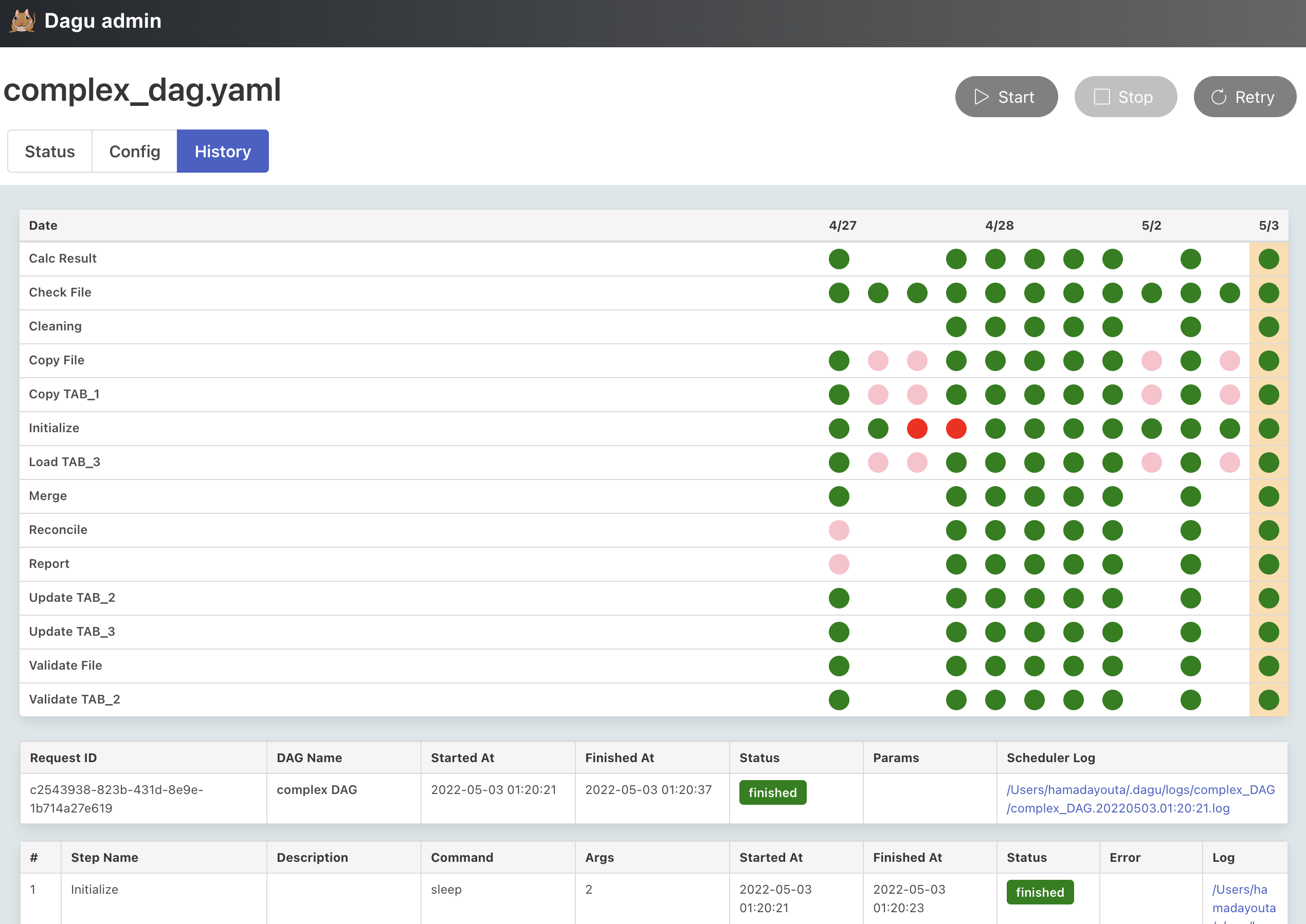
-
History: History of the execution of the workflow.
The history page allows you to check past execution results and logs.
YAML format
Minimal
A minimal definition is as follows:
name: minimal configuration          # DAG's name
steps:                               # Steps inside the DAG
  - name: step 1                     # Step's name (should be unique within the file)
    command: python main_1.py        # Command and arguments to execute
  - name: step 2
    command: python main_2.py
    depends:
      - step 1                       # [optional] Name of the step to depend on
Environment variables
You can define Environment variables and refer using env field.
name: example
env:
  SOME_DIR: ${HOME}/batch
steps:
  - name: some task in some dir
    dir: ${SOME_DIR}
    command: python main.py
Parameters
You can define parameters using params field and refer to each parameter as $1, $2, etc. Parameters can also be command substitutions or environment variables. It can be overridden by --params= parameter of start command.
name: example
params: param1 param2
steps:
  - name: some task with parameters
    command: python main.py $1 $2
Command substitution
You can use command substitution in field values. I.e., a string enclosed in backquotes (`) is evaluated as a command and replaced with the result of standard output.
name: example
env:
  TODAY: "`date '+%Y%m%d'`"
steps:
  - name: hello
    command: "echo hello, today is ${TODAY}"
Conditional logic
Sometimes you have parts of a workflow that you only want to run under certain conditions. You can use the precondition field to add conditional branches to your workflow.
For example, the below task only runs on the first date of each month.
name: example
steps:
  - name: A monthly task
    command: monthly.sh
    preconditions:
      - condition: "`date '+%d'`"
        expected: "01"
If you want the workflow to continue to the next step regardless of the step's conditional check result, you can use the continueOn field:
name: example
steps:
  - name: A monthly task
    command: monthly.sh
    preconditions:
      - condition: "`date '+%d'`"
        expected: "01"
    continueOn:
      skipped: true
State handlers
It is often desirable to take action when a specific event happens, for example, when a workflow fails. To achieve this, you can use handlerOn fields.
name: example
handlerOn:
  failure:
    command: notify_error.sh
  exit:
    command: cleanup.sh
steps:
  - name: A task
    command: main.sh
Repeating task
If you want a task to repeat execution at regular intervals, you can use the repeatPolicy field. If you want to stop the repeating task, you can use the stop command to gracefully stop the task.
name: example
steps:
  - name: A task
    command: main.sh
    repeatPolicy:
      repeat: true
      intervalSec: 60
All available fields
Combining these settings gives you granular control over how the workflow runs.
name: all configuration              # DAG's name
description: run a DAG               # DAG's description
env:                                 # Environment variables
  LOG_DIR: ${HOME}/logs
  PATH: /usr/local/bin:${PATH}
logDir: ${LOG_DIR}                   # Log directory to write standard output
histRetentionDays: 3                 # Execution history retention days (not for log files)
delaySec: 1                          # Interval seconds between steps
maxActiveRuns: 1                     # Max parallel number of running step
params: param1 param2                # Default parameters for the DAG that can be referred to by $1, $2, and so on
preconditions:                       # Precondisions for whether the DAG is allowed to run
  - condition: "`echo 1`"            # Command or variables to evaluate
    expected: "1"                    # Expected value for the condition
mailOn:
  failure: true                      # Send a mail when the DAG failed
  success: true                      # Send a mail when the DAG finished
MaxCleanUpTimeSec: 300               # The maximum amount of time to wait after sending a TERM signal to running steps before killing them
handlerOn:                           # Handlers on Success, Failure, Cancel, and Exit
  success:
    command: "echo succeed"          # Command to execute when the DAG execution succeed
  failure:
    command: "echo failed"           # Command to execute when the DAG execution failed
  cancel:
    command: "echo canceled"         # Command to execute when the DAG execution canceled
  exit:
    command: "echo finished"         # Command to execute when the DAG execution finished
steps:
  - name: some task                  # Step's name
    description: some task           # Step's description
    dir: ${HOME}/logs                # Working directory
    command: python main.py $1       # Command and parameters
    mailOn:
      failure: true                  # Send a mail when the step failed
      success: true                  # Send a mail when the step finished
    continueOn:
      failure: true                   # Continue to the next regardless of the step failed or not
      skipped: true                  # Continue to the next regardless the preconditions are met or not
    retryPolicy:                     # Retry policy for the step
      limit: 2                       # Retry up to 2 times when the step failed
    repeatPolicy:                    # Repeat policy for the step
      repeat: true                   # Boolean whether to repeat this step
      intervalSec: 60                # Interval time to repeat the step in seconds
    preconditions:                   # Precondisions for whether the step is allowed to run
      - condition: "`echo 1`"        # Command or variables to evaluate
        expected: "1"                # Expected Value for the condition
The global configuration file ~/.dagu/config.yaml is useful to gather common settings, such as logDir or env.
Admin configuration
Environment variables
DAGU__DATA- path to directory for internal use by dagu (default :~/.dagu/data)DAGU__LOGS- path to directory for logging (default :~/.dagu/logs)DAGU__ADMIN_PORT- port number for web URL (default :8000)DAGU__ADMIN_NAVBAR_COLOR- navigation header color for web UI (optional)DAGU__ADMIN_NAVBAR_TITLE- navigation header title for web UI (optional)
Web UI configuration
Please create ~/.dagu/admin.yaml.
host: <hostname for web UI address>                          # default value is 127.0.0.1
port: <port number for web UI address>                       # default value is 8000
dags: <the location of DAG configuration files>              # default value is current working directory
command: <Absolute path to the dagu binary>                  # [optional] required if the dagu command not in $PATH
isBasicAuth: <true|false>                                    # [optional] basic auth config
basicAuthUsername: <username for basic auth of web UI>       # [optional] basic auth config
basicAuthPassword: <password for basic auth of web UI>       # [optional] basic auth config
Global configuration
Creating a global configuration ~/.dagu/config.yaml is a convenient way to organize shared settings.
logDir: <path-to-write-log>         # log directory to write standard output
histRetentionDays: 3                # history retention days
smtp:                               # [optional] mail server configuration to send notifications
  host: <smtp server host>
  port: <stmp server port>
errorMail:                          # [optional] mail configuration for error-level
  from: <from address>
  to: <to address>
  prefix: <prefix of mail subject>
infoMail:
  from: <from address>              # [optional] mail configuration for info-level
  to: <to address>
  prefix: <prefix of mail subject>
FAQ
How to contribute?
Feel free to contribute in any way you want. Share ideas, questions, submit issues, and create pull requests. Thank you!
Where is the history data stored?
It will store execution history data in the DAGU__DATA environment variable path. The default location is $HOME/.dagu/data.
Where are the log files stored?
It will store log files in the DAGU__LOGS environment variable path. The default location is $HOME/.dagu/logs. You can override the setting by the logDir field in a YAML file.
How long will the history data be stored?
The default retention period for execution history is seven days. However, you can override the setting by the histRetentionDays field in a YAML file.
How can a workflow be retried from a specific task?
You can change the status of any task to a failed state. Then, when you retry the workflow, it will execute the failed one and any subsequent.

Does it have a scheduler function?
No, it doesn't have scheduler functionality. It is meant to be used with cron or other schedulers.
How can it communicate with running processes?
Dagu uses Unix sockets to communicate with running processes.

License
This project is licensed under the GNU GPLv3 - see the LICENSE.md file for details
Contributors
Made with contrib.rocks.